
Project Views in Nexus
Nexus provides multiple ways to visualize and manage tasks within a project. These views help teams and individuals track progress, organize workflows efficiently, and optimize productivity. Users can switch between views based on their needs and working preferences.
Each view displays tasks according to the filters applied at the top of the page.
Available Project Views
Nexus offers four primary ways to interact with your projects:
- Board View – Visualize and manage tasks in a Kanban-style workflow.
- List View – View tasks in a structured, sortable table format.
- Calendar View – Organize tasks based on due dates and deadlines.
- Gantt Chart View – Plan and track project timelines visually.
Each view offers unique advantages and can be used in combination for better project control.
1. Board View (Kanban-Style Task Management)
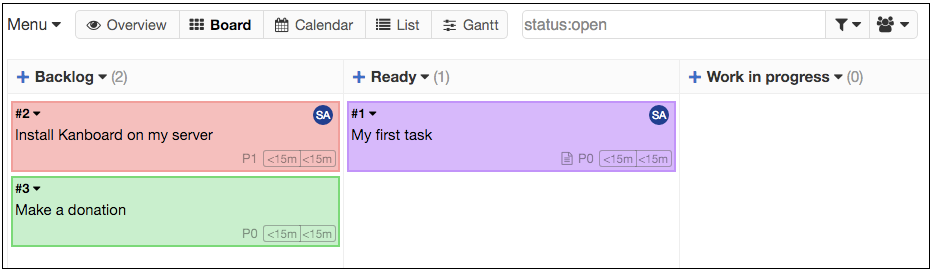
The Board View isprovides onea of the most interactivesimple and intuitive waysway to manage tasks. It represents tasks as cards arranged in columns, where each column represents a stage in the workflow (e.g., To-Do, In Progress, Done).
✅✔ Best for: Teams and individuals who prefer a visual, drag-and-drop workflow.
Key Features:
- Drag and Drop
Tasks:– Easily move tasks between columnsasbyprogressdraggingisthem.
✔made.Quick Keyboard Shortcut:AccessPress– Use the shortcut“"V +B”B" to switch toBoardtheView.board - view instantly.
✔TaskRecentUpdatesChanges:Recently–modified tasks are highlightedTasks with a shadow effect. - indicate they were recently updated.
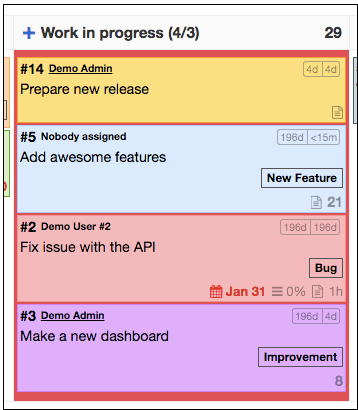
Task Limits
:- Each column
can havehas adefinedtask limitontothepreventnumber of tasks it holds.overload. IfWhen thetasklimit is exceeded, thecolumn’scolumn background turns red, signaling that too many tasks are inprogress
- Each column
Example Use Case:
A
This softwareview developmenthelps team trackskeep work usingorganized, theefficient, Boardand View,easy movingto tasks through Backlog → In Progress → Testing → Donemanage, ensuring smooth workflow visibility.!
2. List View (Table-Based Organization)

The List View presents tasks in a structured, spreadsheet-like format, making it ideal for users who prefer an organized table layout over a visual board.
✅ Best for: Users who need to sort, filter, and analyze tasks quickly.
Key Features:
- Displays all tasks in a list format with columns for task name, status, due date, assigned user, and more.
- Easily searchable and sortable – sort by priority, deadlines, or assignee.
- Keyboard Shortcut: Press “V + L” to switch to List View.
Example Use Case:
A project manager overseeing multiple tasks can use the List View to filter urgent tasks, ensuring priority work is completed on time.
3. Calendar View (Time-Based Task Management)
The Calendar View helps visualize tasks based on their due dates, making it ideal for deadline tracking and scheduling work.
✅ Best for: Teams managing time-sensitive tasks, deadlines, and events.
Key Features:
- Tasks appear on their assigned due dates within the calendar.
- Drag-and-drop rescheduling: Move tasks to different dates directly on the calendar.
- Filters for task categories: View only high-priority or specific project tasks.
Example Use Case:
A content marketing team plans blog posts and social media campaigns using the Calendar View, ensuring tasks align with scheduled publishing dates.
4. Gantt Chart View (Timeline Planning & Tracking)
The Gantt Chart View is useful for project planning, showing tasks on a timeline with dependencies.
✅ Best for: Project managers and teams that need to plan long-term projects.
Key Features:
- Visualizes task dependencies: See which tasks must be completed before others can begin.
- Tracks progress: Monitor whether tasks are on schedule, at risk, or overdue.
- Adjust schedules easily: Drag tasks along the timeline to reschedule work.
Example Use Case:
A construction company uses the Gantt Chart View to plan tasks like design, approval, foundation work, and finishing, ensuring work is completed in the correct sequence.
5. Customizing Task Display on the Board
Collapsed vs. Expanded Task Cards
Tasks on the Board View can be displayed in two modes:
-
Collapsed Mode (Minimal View)
- Shows only essential task details.
- If a task is assigned to someone, their initials appear next to the task number.
- Hovering over the task reveals its full title if it's too long.
- Shortcut: Press “S” to switch to collapsed mode.
-
Expanded Mode (Detailed View)
- Displays more task information at a glance, such as due dates and assigned users.
✅ Best for: Managing how much task information is displayed at once.
6. Adjusting the Board Layout for Better Usability
Horizontal Scrolling & Compact Mode
- If the board is too wide to fit on your screen, a horizontal scroll bar appears at the bottom.
- To avoid scrolling, switch to Compact Mode, which resizes the board to fit the screen width.
- Shortcut: Press “C” to toggle between scrolling and compact mode.
✅ Best for: Users who need to adjust the layout to match their screen size.
7. Hiding and Showing Columns for Focused Work
Not all columns on the board are always relevant. Nexus allows you to hide unnecessary columns for a cleaner, more focused workspace.
How to Hide a Column:
- Click on the column dropdown menu.
- Select “Hide this column”.
How to Show a Hidden Column:
- Click on the “+” icon on the board to restore hidden columns.
✅ Best for: Users who want to reduce distractions by displaying only relevant work.
Final Thoughts: Making the Most of Nexus Project Views
Nexus provides multiple ways to view, organize, and interact with tasks, ensuring that every team and individual can work in a way that suits them best.
Summary of Views & Their Uses:
| View | Best for |
|---|---|
| Board View | Visual workflow tracking, drag-and-drop task movement. |
| List View | Structured, sortable task management. |
| Calendar View | Tracking deadlines and planning schedules. |
| Gantt View | Project timeline tracking and task dependencies. |
By using keyboard shortcuts, custom filters, and display adjustments, users can streamline task management and improve team efficiency.