
Complete Guide to Project Management in Nexus
Nexus is a versatile project management tool designed to help individuals and teams organize tasks, track progress, and collaborate effectively. With features like customizable project roles, detailed permissions, task tracking, and automation, Nexus ensures smooth project execution.
🛠 Project Types: Choosing the Right Structure
Nexus supports two distinct project types, allowing users to manage projects based on their specific needs:
1️⃣ Team Projects
✔ Designed for collaborative work with multiple users.
✔ Includes user and group management for better access control.
✔ Can be created and managed only by Administrators or Application Managers.
✔ Ideal for companies, departments, or teams working on shared tasks.
2️⃣ Personal Projects
✔ Intended for individual users who don’t require collaboration.
✔ No user management—only the owner and administrators can access.
✔ Best suited for personal task organization, self-management, or freelancing.
✔ Can be converted into a Team Project if needed.
📂 Creating & Managing Projects
Nexus allows users to create multiple projects, providing the flexibility to manage different initiatives simultaneously.
🔹 Creating a Team Project
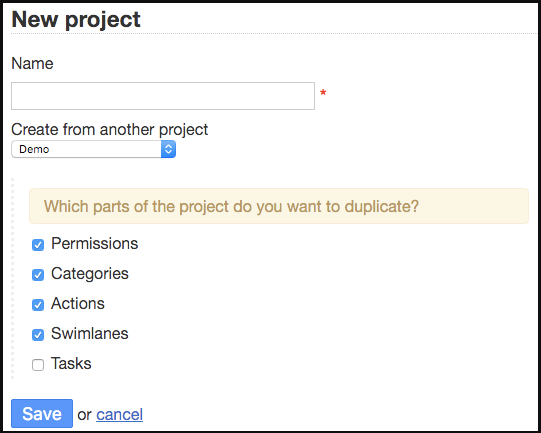
2️⃣ Enter a project name and configure settings.
3️⃣ Select user permissions to define access levels.
4️⃣ Click Create to finalize.
🔹 Only Administrators and Application Managers can create team projects.
🔹 Creating a Personal Project
1️⃣ Click "New Personal Project" in the Dashboard.
2️⃣ Unlike team projects, there is no user management—only the owner and administrators can access.
🔹 Duplicating an Existing Project
When creating a new project, you can copy settings from an existing project to save time. This includes:
✔ User Permissions – Retains the same access control settings.
✔ Task Categories – Copies predefined task categories for better organization.
✔ Workflow Actions – Maintains automated workflows.
✔ Swimlanes – Preserves task grouping.
✔ Tasks – Clones existing tasks if needed.
🔹 Editing Projects
✔ Rename the project at any time by clicking "Edit Project".
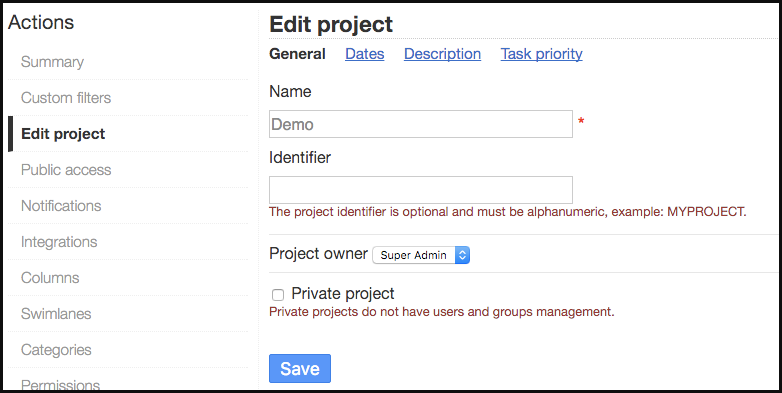
✔ Define start and end dates to create Gantt charts for tracking progress.
✔ Project descriptions appear as tooltips on the board and in project listings.
✔ Convert between personal and team projects when required.
🔹 Converting a Project Type
✔ Convert a personal project to a team project by unchecking the "Personal Project" option.
✔ Convert a team project to a personal project (existing users must be removed manually).
🗑 Deleting a Project
✔ Only project managers or administrators can delete a project.
✔ Navigate to "Project Settings" > "Remove".
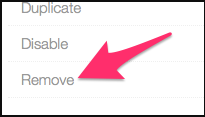
✔ All tasks associated with the project will be permanently deleted.
🔑 Project Permissions & Roles
Each project is independent and secure, requiring explicit permissions for access.
🚀 Project Roles
1️⃣ Project Manager – Full control over the project, settings, and team management.
2️⃣ Project Member – Can create and manage tasks but with limited controls.
3️⃣ Project Viewer – Read-only access with no permission to modify tasks.
✔ Personal projects do not support user permissions, as they are only accessible to the owner and administrators.
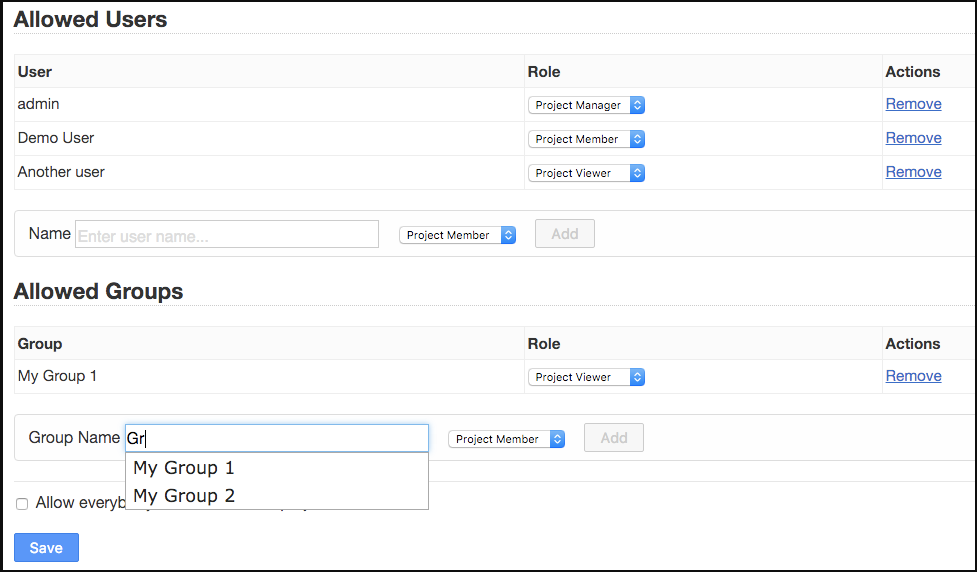
🔧 Custom Project Roles & Restrictions
To fine-tune access control, Nexus allows custom project roles with specific restrictions.
✔ Example: You may want a role that allows users to move tasks only from "In Progress" to "Done".
🔹 Creating Custom Roles
1️⃣ Go to "Project Settings" > "Custom Roles".
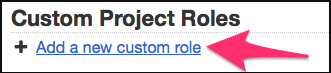
2️⃣ Click "Add a New Custom Role" and define a role name.
3️⃣ Set up restrictions to limit user actions, such as:
- Task Creation – Restrict to specific columns.
- Task Movement – Allow movement between designated columns only.
- Task Status Changes – Limit status updates to certain stages.
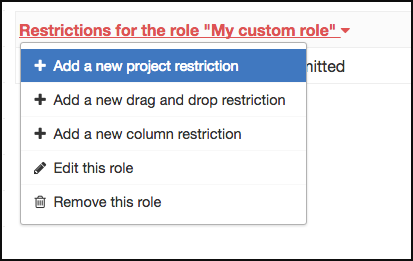
4️⃣ Assign the role to specific users under "Project Permissions".
🔹 Example Role Restrictions
✔ Limit task creation to specific workflow stages.
✔ Restrict task movement between particular columns.

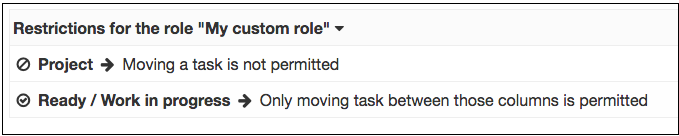
✔ Prevent users from closing or reopening tasks in certain areas.
📢 Sharing Boards & Tasks
By default, boards are private, but they can be shared publicly for external visibility.
✔ Public boards are read-only and cannot be modified.
✔ Access is controlled via a random secure link.
✔ Public boards refresh automatically every 60 seconds.
🔹 Enabling Public Access
1️⃣ Select a project and go to "Public Access".
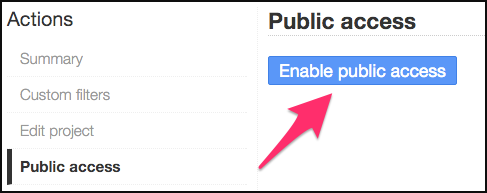
2️⃣ Click "Enable Public Access" to generate a secure link.
3️⃣ Share the link with external stakeholders for read-only access.
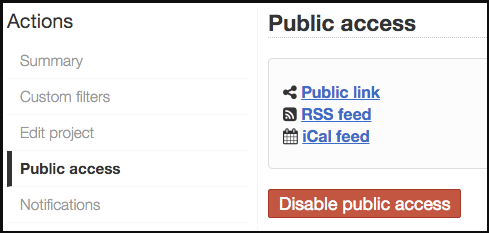
✔ To disable public access, simply turn off sharing.
✔ A new random link is generated each time access is re-enabled.
🔍 Custom Filters: Streamline Task Management
Nexus allows users to save custom search queries for quick filtering and workflow optimization.
✔ Filters are project-specific and belong to the creator.
✔ Project Managers can share filters with team members.
✔ Filters appear next to default filters on the board.
🔹 Creating a Custom Filter
1️⃣ Navigate to "Project Settings" > "Custom Filters".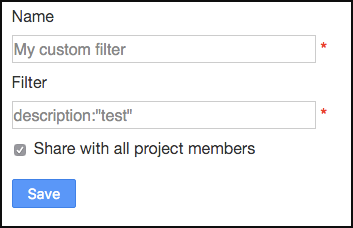
2️⃣ Define your search criteria.
3️⃣ Save the filter for quick access in task management.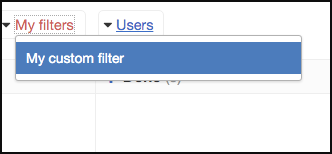
✔ Ideal for tracking specific tasks, statuses, or deadlines efficiently.
📊 Project Analytics: Gain Insights
Nexus includes built-in analytics to help teams track project progress and improve performance.
🔹 Key Reports & Charts
📌 User Task Distribution – Pie chart showing tasks assigned per user.
📌 Task Flow Analysis – Graph tracking tasks across different stages.
📌 Cumulative Flow Diagram – Displays work progression over time.
📌 Burn Down Chart – Tracks remaining workload against time.
📌 Average Time per Column – Shows how long tasks stay in each stage.
📌 Lead & Cycle Time Analysis – Measures task completion efficiency.
✔ These reports help optimize workflows, manage workloads, and improve productivity.
💡 Why Use Nexus for Project Management?
✅ Flexible Project Types – Work solo or in teams with tailored access.
✅ Granular Permissions – Control who can view, edit, and manage tasks.
✅ Custom Workflows – Define roles, restrictions, and process automation.
✅ Easy Sharing – Public boards for external visibility.
✅ Advanced Analytics – Gain insights into project efficiency.
✅ Smart Filtering – Save time with reusable custom filters.
By leveraging these features, Nexus helps teams stay organized, collaborate efficiently, and complete projects faster!