
Understanding Project Types & Management in Nexus
Nexus allows you to manage multiple projects, which are categorized into two types:
- Team Projects – Designed for multiple users, with user and group management. Only Administrators and Application Managers can create these.
- Personal Projects – Belong to a single user and have no user management. Anyone can create these.
Creating a Project
-
For Multiple Users (Team Project):
- Only Administrators and Managers can create these.
- User management is available.
- Click on "New Project" from the dashboard.
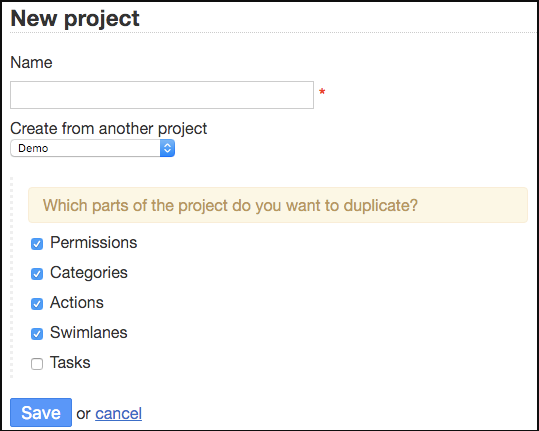
- Enter a project name and submit.
-
For Personal Use (Personal Project):
- Anyone can create one.
- No user management is available.
- Only the owner and administrators can access the project.
- Click on "New Personal Project" from the dashboard.
-
Duplicating an Existing Project:
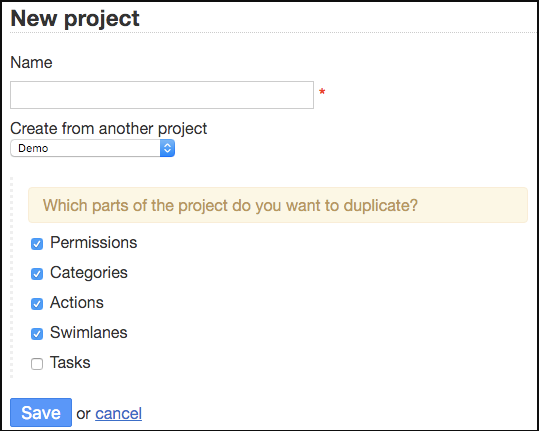
- When creating a new project, you can copy an existing one, including:
- Permissions
- Actions
- Workflow lanes (Swimlanes)
- Categories
- Tasks
- When creating a new project, you can copy an existing one, including:
Editing a Project
- Click on “Edit Project” to rename, update start/end dates, or modify the description.
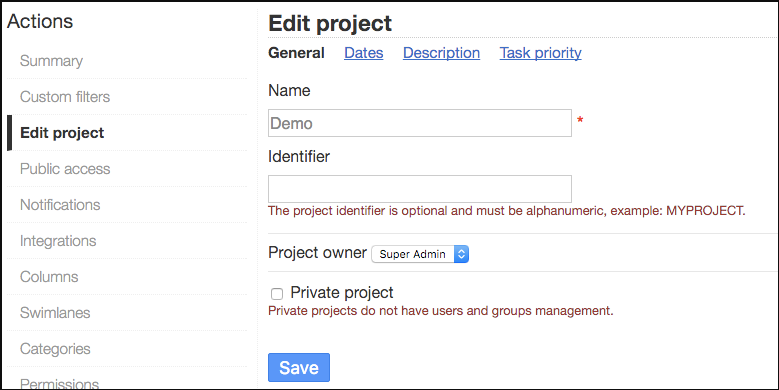
- The start and end dates help generate a Gantt chart.
- Converting Project Types:
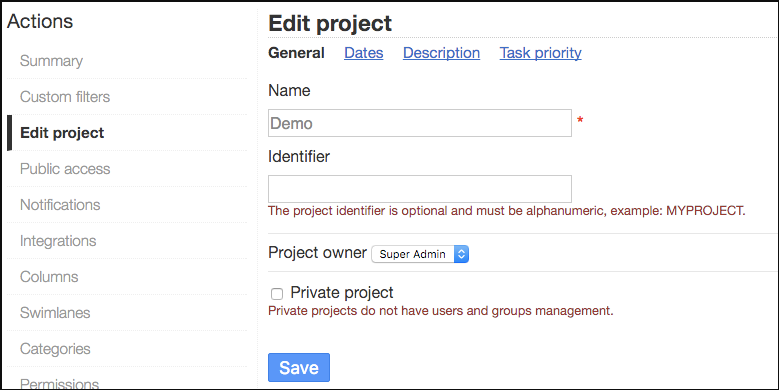
- A Personal Project can be converted into a Team Project and vice versa.
- If converting to a Personal Project, existing users will still have access unless manually removed.
Deleting a Project
- Only Administrators or Project Managers can delete a project.
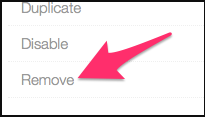
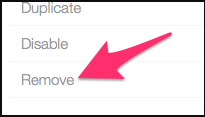
- Go to "Project Settings" > "Remove" to delete a project.
- Deleting a project permanently removes all tasks associated with it.
Managing Project Permissions
Each project is separate, and access must be granted explicitly.
- Roles in a Project:
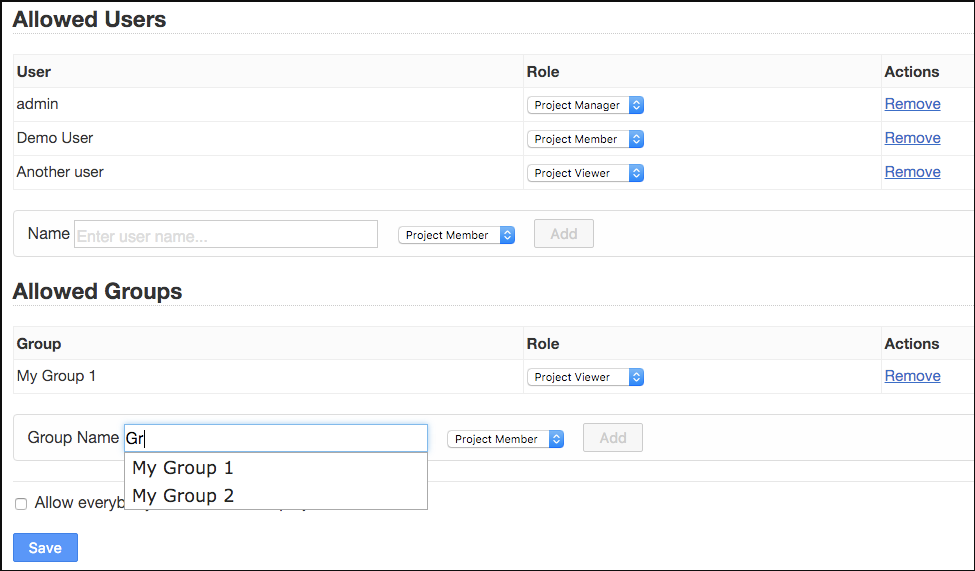
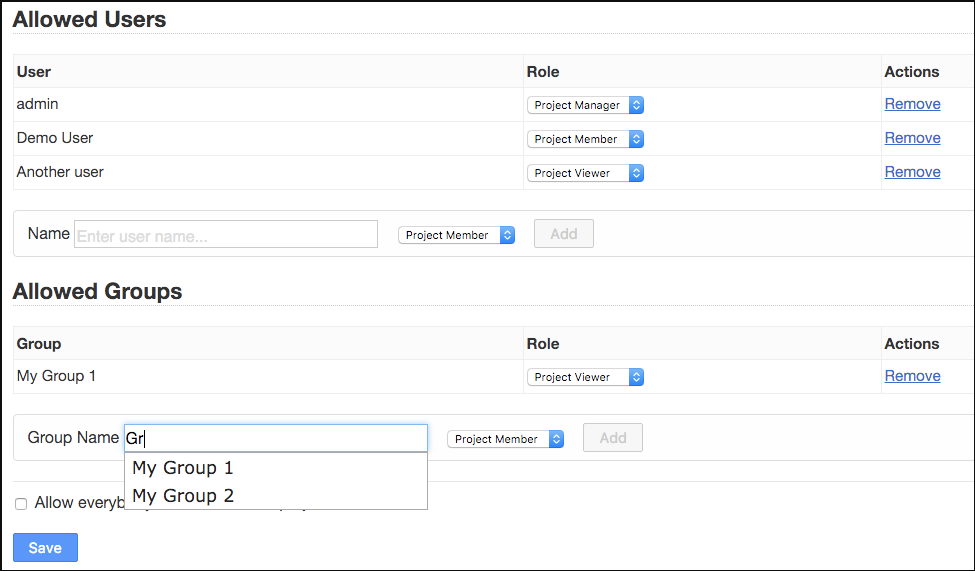
- Project Manager – Full control.
- Project Member – Can contribute but with restrictions.
- Project Viewer – Read-only access.
- Only Administrators have unrestricted access to all projects.
- Personal Projects do not have permission settings since they are private to the owner.
Custom Roles & Restrictions
Custom roles help set specific restrictions on users. For example, you can allow certain users to move tasks only between specific columns.
-
How to Set Up a Custom Role:
- Go to Project Settings > Custom Roles > Add a New Custom Role
- Name the role and define restrictions:
- Restrict task creation
- Restrict moving or closing tasks
- Limit actions to specific workflow columns
- Assign the role to users under Project Settings > Permissions
-
Examples of Custom Role Restrictions:
- Allow task creation only in specific columns (e.g., "Backlog")
- Restrict users from changing task status in certain columns
- Allow moving tasks only between defined workflow steps (e.g., "Ready" → "Work in Progress")
Sharing Projects & Tasks
By default, all project boards are private. However, you can enable Public Access for read-only viewing.
-
To enable public access:
- Open the project.
- Click “Public Access” and enable it.
- A unique link will be generated for viewing.
-
Public access includes:
- Read-only project board
- RSS feed for updates
- iCalendar link for scheduling
-
To disable public access: Simply toggle it off. A new access link will be generated, making previous links invalid.
Using Custom Filters
Custom filters help save frequently used search queries for quick access.
- How to create a custom filter:
- Go to Project Settings > Custom Filters
- Create and save a search query
- If you're a Project Manager, you can share the filter with team members
Once saved, your custom filter appears alongside default filters for easy access.
This guide simplifies project creation, management, and permissions in Nexus, making it easy to navigate whether you're a beginner or an experienced user.